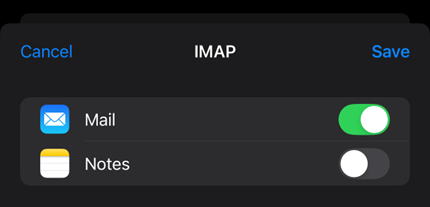
This guide walks you through setting up email on your Apple iPhone using the Mail app.
This article assumes that you have already configured a mailbox within your cPanel account. To carry out the instructions in this article you will need the Manual Settings for your mailbox.
iPad users
Whilst the screenshots in this guide are taken on an iPhone, the steps are identical on an iPad.
- On your device, open the Settings application.

- Scroll through the Settings list and select Apps.
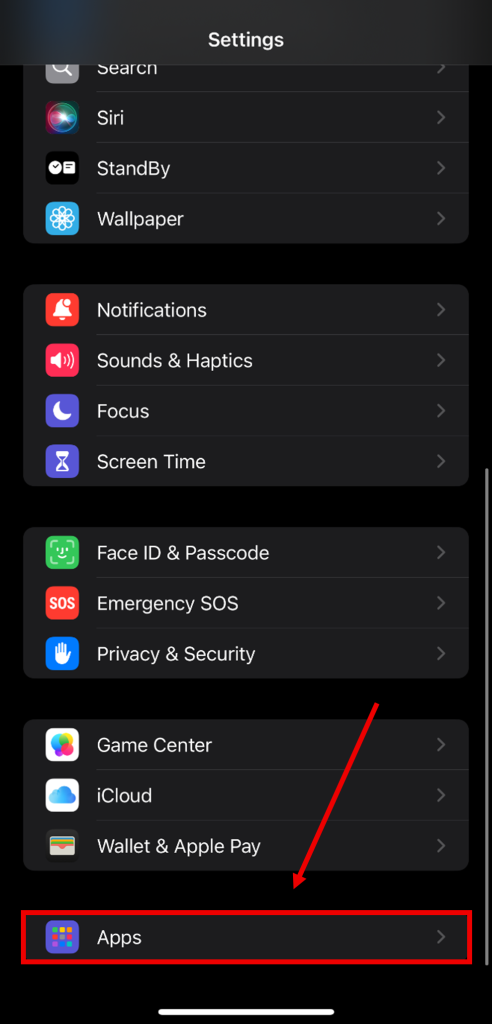
- Select the option for Mail

Next, select Mail Accounts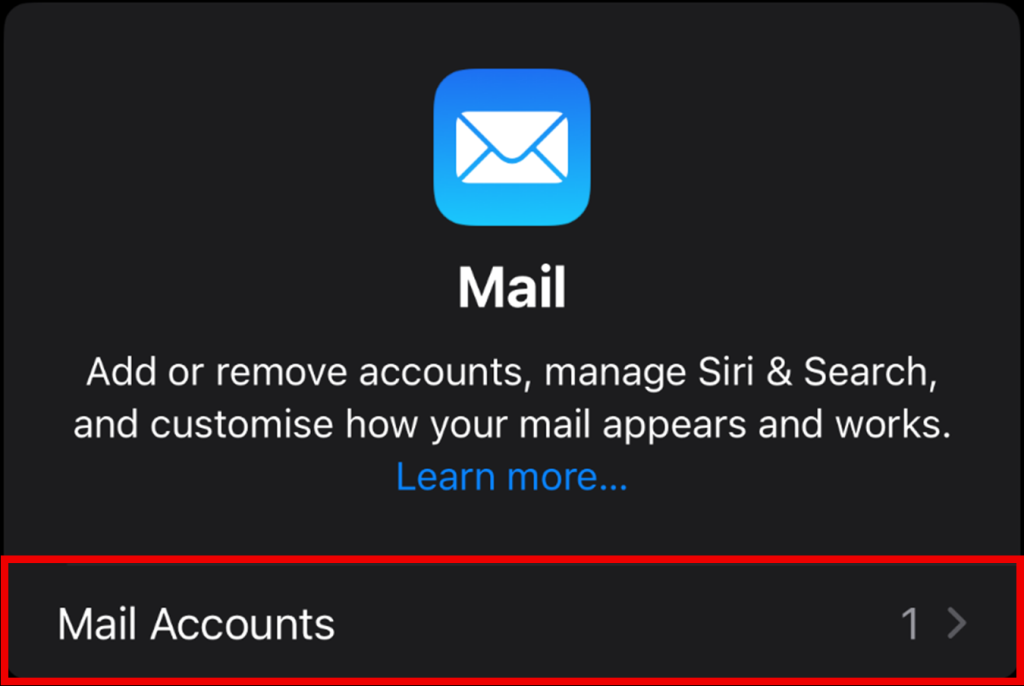
Then Add Account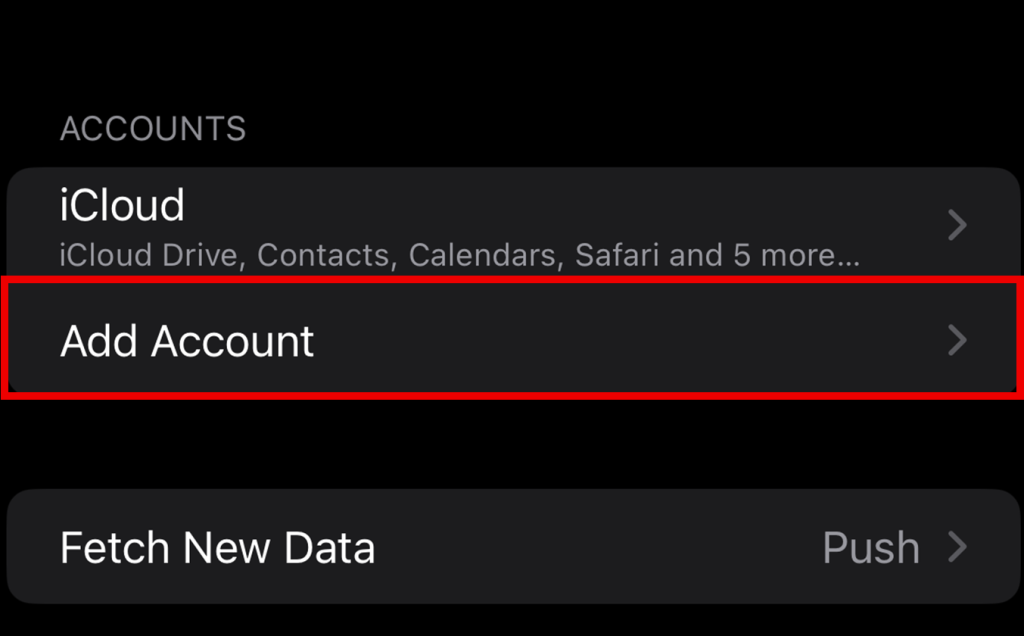
- You will now see several account type options, please select Other as the account type
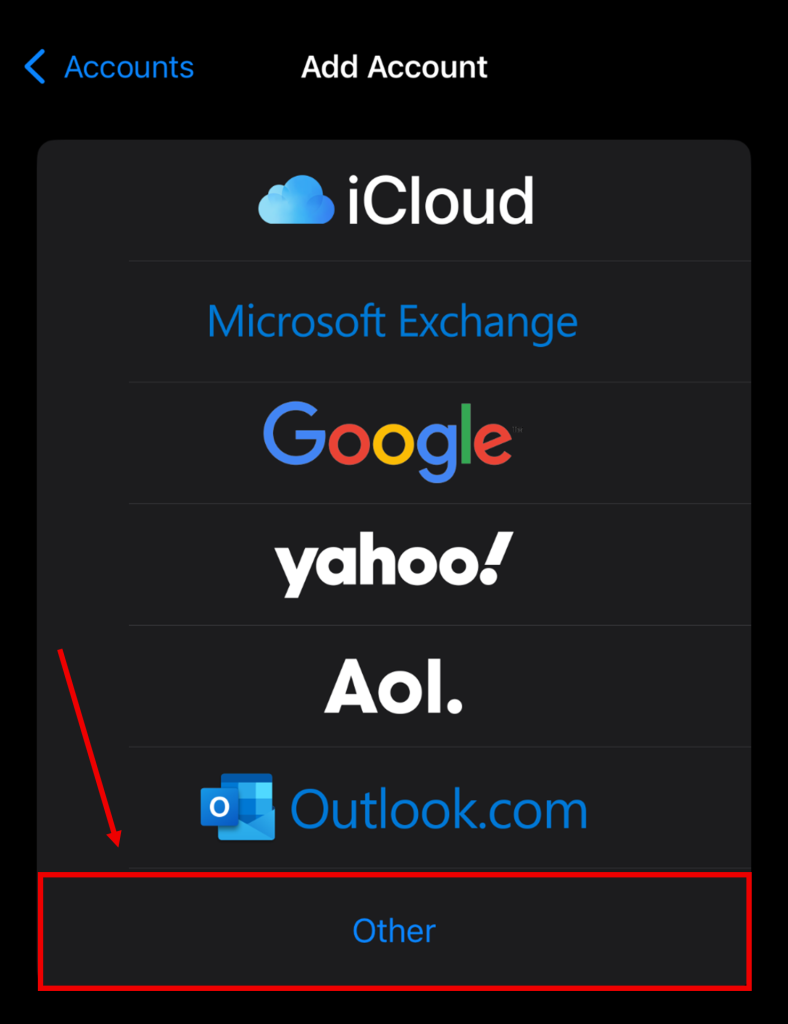
Next, select Add Mail Account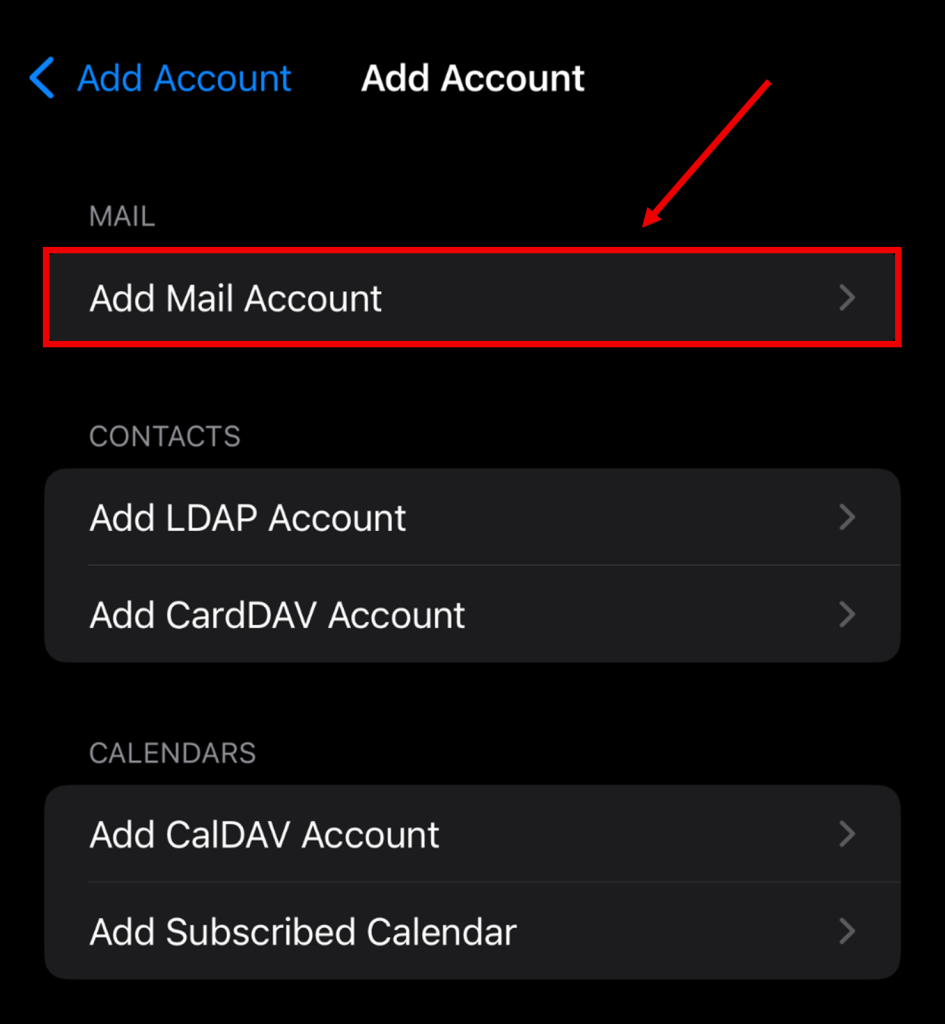
- A form will appear where you can enter your account details. The Email and Password fields are required to be filled in, however Name and Description are optional. Once these fields have been filled, tap Next in the top right corner of the screen.
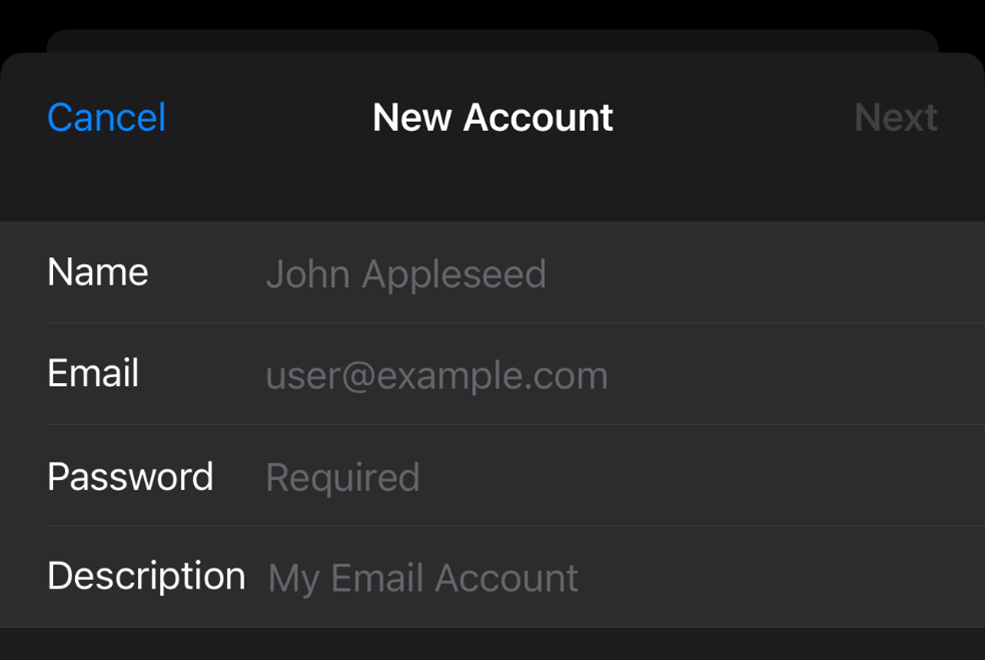
-
On the page you are taken to, you will be asked to fill in all the necessary server information for your incoming and outgoing email. Before you begin filling in the information, please ensure that IMAP is chosen as the account type.
Incoming server (usually mail.yourdomain.co.uk)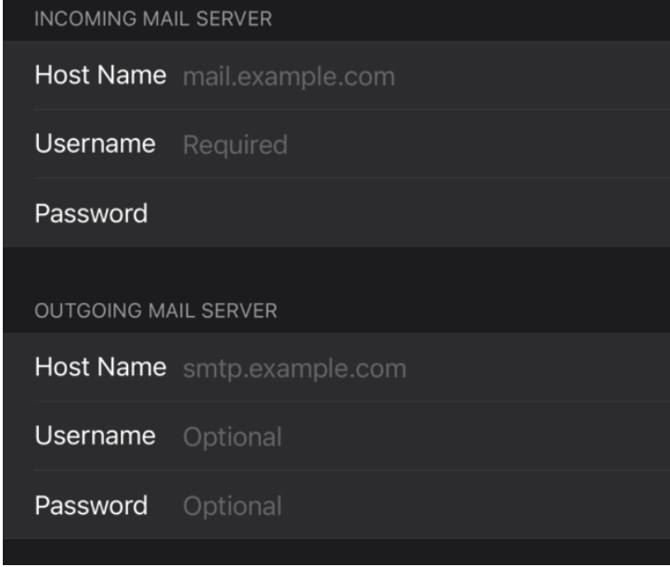
Username: Your email address
Password: Your email address password
Outgoing server (usually mail.yourdomain.co.uk)
Username: Your email address
Password: Your email address password
IMAP Port: 993
POP3 Port: 995
If you are unsure of your hostname, please click here
After these details have been entered in full, tap Next in the top right corner of your screen.
- Once finished, tap Save in the top right corner of the page to complete the setup