Think of WordPress plugins like apps on your phone. You wouldn’t want to run outdated versions of your banking or social media apps.
The same goes for plugins. These mini-software packages that add features like contact forms, SEO tools, memberships, and more to your site are constantly being improved by their developers.
First, we recommend creating a backup beforehand. We’ve seen too many cases where a simple update went wrong and the site had no backup to restore from. It’s like having insurance for your website.
WordPress comes with a built-in automatic update system. It automatically checks for updates and shows you notifications when there are updates available for your WordPress plugins, themes, and WordPress core software.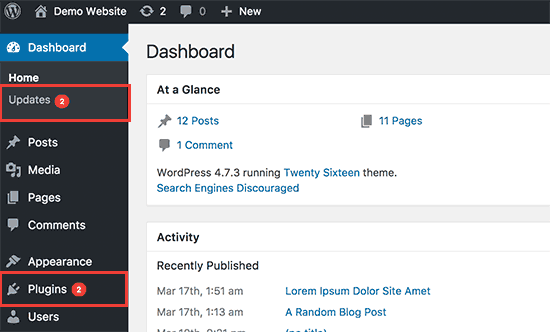
To update your WordPress plugins, simply visit the Dashboard » Updates page in the admin area (yourdomain.co.uk/wp-admin).
You will then see a list of plugins that need updating.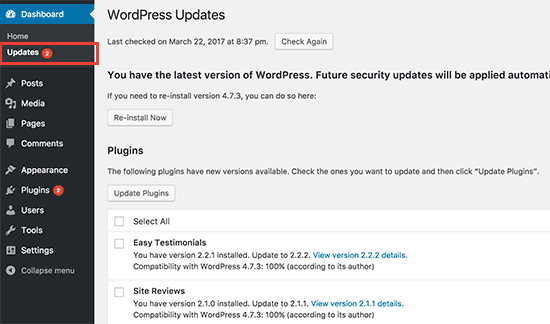
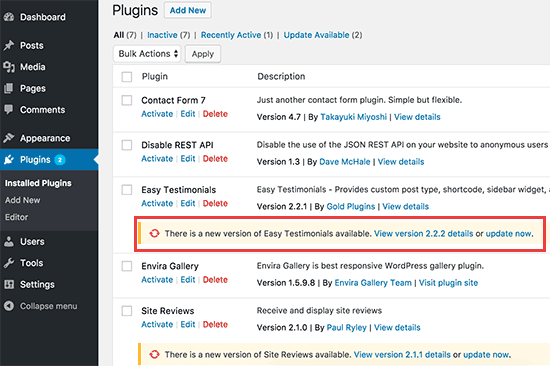
You can install these updates by clicking ‘Update Plugins.’ Or, visit the Plugins » Installed Plugins page. Below each plugin is a notification with updates available to install.
You can click the ‘Update Now’ link to install each update. Make sure that you install them one at a time, and wait until the plugin finishes updating before you click the next link.