Please Note: Our Support staff do not have access to view your cPanel password. If you are unsure of your password it will need to be updated using the instructions below.
Please note: This will only update your cPanel password and will not change your Client area password.
If you need to update your client area password, you can do so using this guide
If you use a wrong password more than five times within 5 minutes, then you will get blocked by our firewall, so don't try to guess your cPanel password repeatedly.
If you have forgotten your cPanel password, or need to change it, then you can easily reset it yourself, via your client area
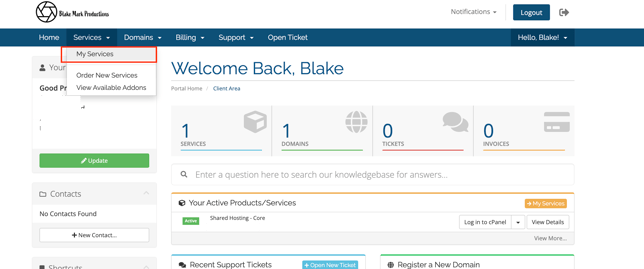
- Within your client area click Services > My Services on the menu to view your active hosting
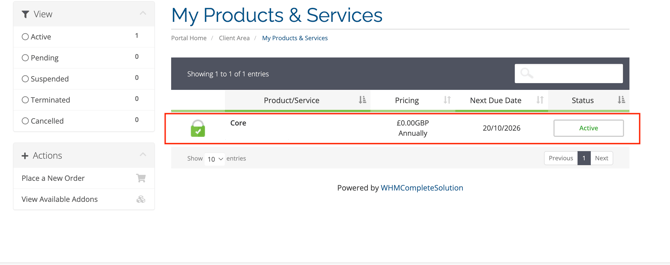
- Click on the product you would like to manage
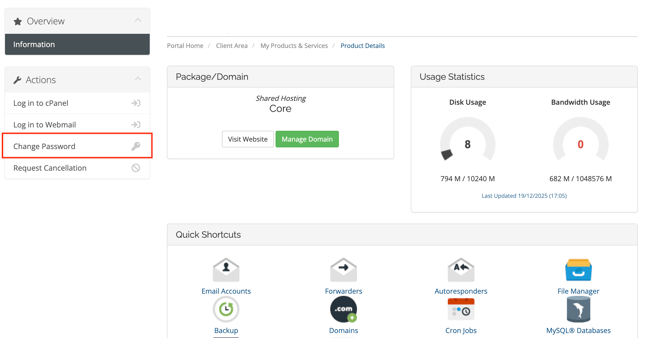
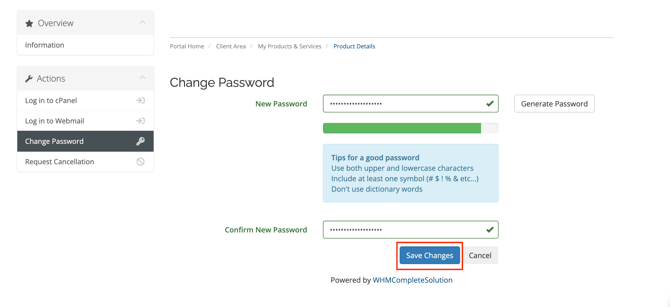
- Click on 'Change Password'
- Type a new password in the New Password box and enter the same password again in the Confirm New Password box. Click Save Changes to finish.
Finding your cPanel Username
If you don't have your welcome email to hand, you can access a hosting plan's cPanel via your Client Area.
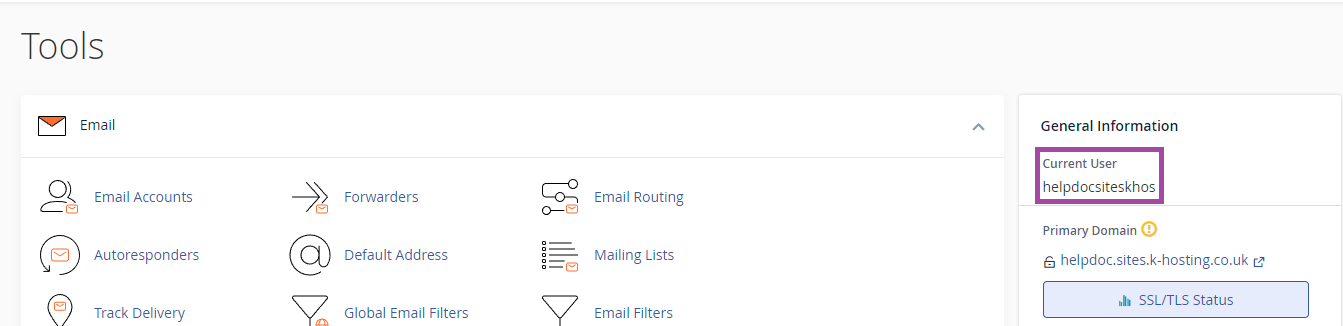
Once you are in cPanel, your username will be displayed on the right-hand side.